Raw Metal
 Alain Galvan ·Sep 8, 2019 · Updated 3 weeks ago
An overview on how to write modern Apple Metal applications. Learn what key data structures are needed for it and how to draw objects.
Tags: blogopengltrianglehellotheorydiagrams
Alain Galvan ·Sep 8, 2019 · Updated 3 weeks ago
An overview on how to write modern Apple Metal applications. Learn what key data structures are needed for it and how to draw objects.
Tags: blogopengltrianglehellotheorydiagrams
Apple Metal is Apple's primary computer graphics API, and after depreciating OpenGL, the only graphics API supported and maintained by Apple.
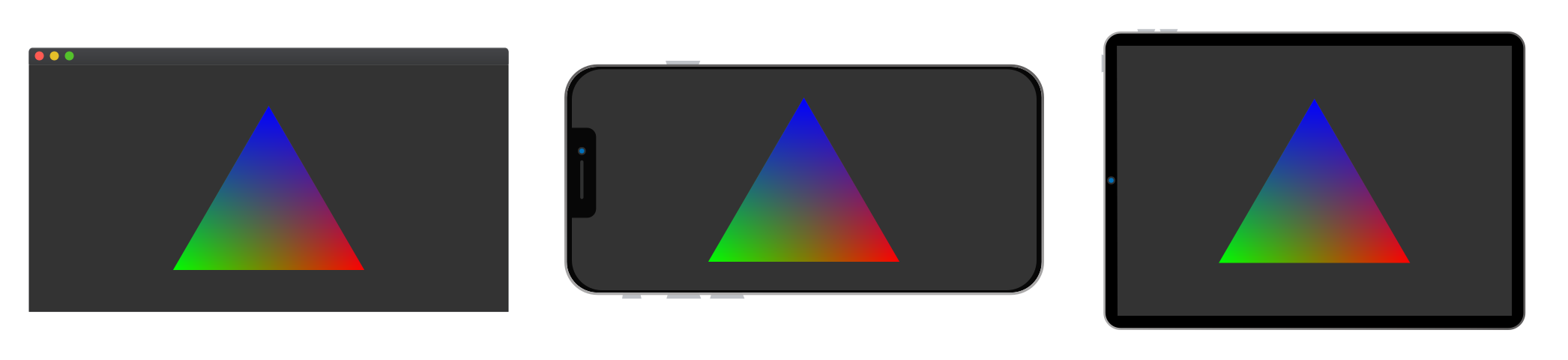
Metal is limited to only Apple operating systems:
🍎 Mac OS
📱 iOS / iPad OS / tvOS / watchOS
Metal is also limited to only a few languages, with the rest having to opt for external calls to Objective C/C++ or Swift.
Objective C
Objective C++
Swift
Though despite these limitations, Apple Metal is an extremely elegant, concise, and robust API with decent support on all Apple supported platforms and driver engineers happy to help with any issues that may arise during development. You'll also find that writing the same code in Apple Metal tends to take significantly fewer lines of code than other graphics APIs like Vulkan or DirectX 12.
I've prepared a Github Repo with everything we need to get started. We're going to walk through a Hello Triangle app in modern C++, a program that creates a triangle and renders it onto the screen.
First install:
An IDE such as Visual Studio, XCode, or a compiler such as GCC.
Then type the following in your terminal.
# 🐑 Clone the repo
git clone https://github.com/alaingalvan/metal-seed --recurse-submodules

# 💿 go inside the folder
cd metal-seed

# 👯 If you forget to `recurse-submodules` you can always run:
git submodule update --init

# 🍎 To build your XCode project on Mac OS
cmake -B build -G Xcode

# 🍎📱 To build your XCode project targeting iOS / iPad OS / Apple TV OS / WatchOS
cmake -B build -G Xcode -DCMAKE_SYSTEM_NAME=iOS

# 🔨 Build on any platform:
cmake --build .The following will explain snippets that can be found in the Github repo, with certain parts omitted, and member variables (mMemberVariable) declared inline without the m prefix so their type is easier to see and the examples here can work on their own.
We're using CrossWindow to handle cross platform window creation, so creating a window and updating it is very easy:
#include "CrossWindow/CrossWindow.h"
#include "Renderer.h"

#include <iostream>

void xmain(int argc, const char** argv)
{
  // 🖼 Create Window
  xwin::WindowDesc wdesc;
  wdesc.title = "Metal Seed";
  wdesc.name = "MainWindow";
  wdesc.visible = true;
  wdesc.width = 640;
  wdesc.height = 640;
  wdesc.fullscreen = false;

  xwin::Window window;
  xwin::EventQueue eventQueue;

  if (!window.create(wdesc, eventQueue))
  { return; };

  // 🌋 Create a renderer
  Renderer renderer(window);

  // 🏁 Engine loop
  bool isRunning = true;
  while (isRunning)
  {
    bool shouldRender = true;

    // ♻️ Update the event queue
    eventQueue.update();

    // 🎈 Iterate through that queue:
    while (!eventQueue.empty())
    {
      //Update Events
      const xwin::Event& event = eventQueue.front();

      // 💗 On Resize:
      if (event.type == xwin::EventType::Resize)
      {
        const xwin::ResizeData data = event.data.resize;
        renderer.resize(data.width, data.height);
        shouldRender = false;
      }

      // ❌ On Close:
      if (event.type == xwin::EventType::Close)
      {
        window.close();
        shouldRender = false;
        isRunning = false;
      }

      eventQueue.pop();
    }

    // ✨ Update Visuals
    if (shouldRender)
    {
      renderer.render();
    }
  }
}
Just note that on iOS, iPad OS, tvOS, and watchOS, the backend API will be UIKit, with MacOS using the Cocoa windowing API.
As an alternative to CrossWindow, you could use another library like , SFML, SDL, QT, or just interface directly with your OS windowing API.
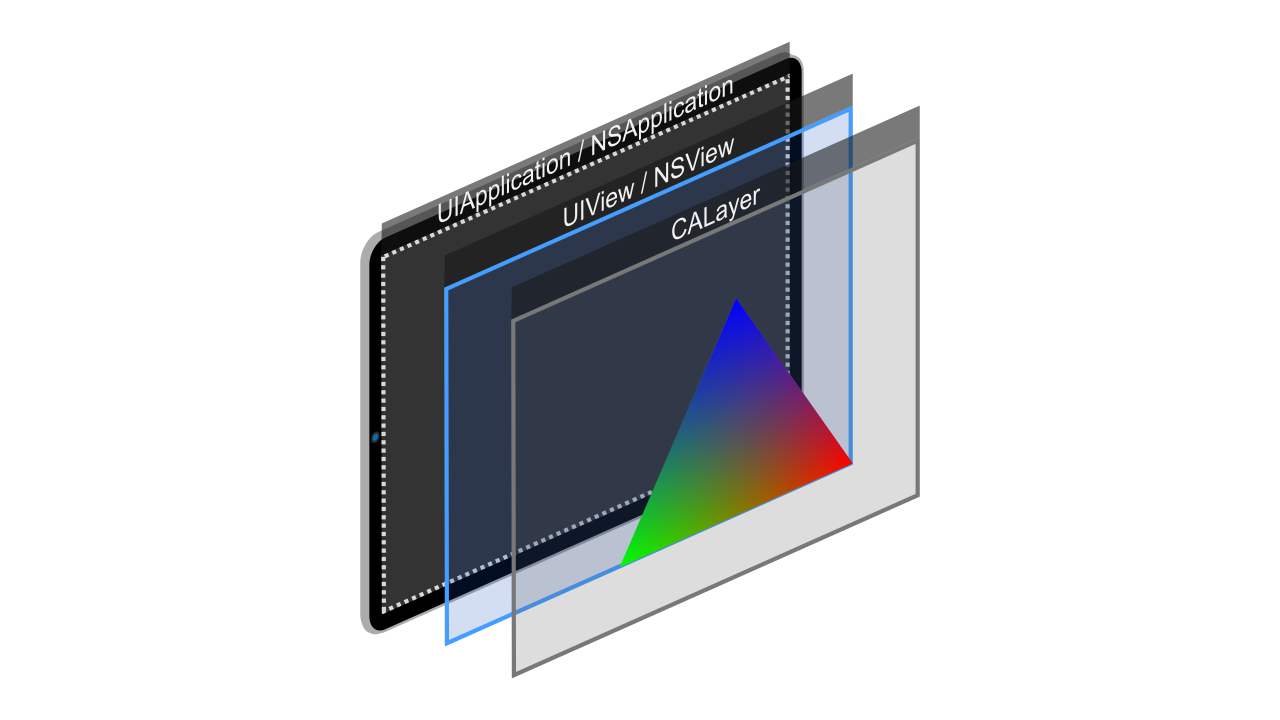
Every Apple Window can have layers attached to it that handle things like OpenGL or Metal.
For more information on the application hierarchy of Cocoa and UIKit applications visit their documentation here.
// ☕ Use CrossWindow-Graphics to create Metal Layer
xgfx::createMetalLayer(&window);
xwin::WindowDelegate& del = window.getDelegate();
CAMetalLayer* layer = (CAMetalLayer*)del.layer;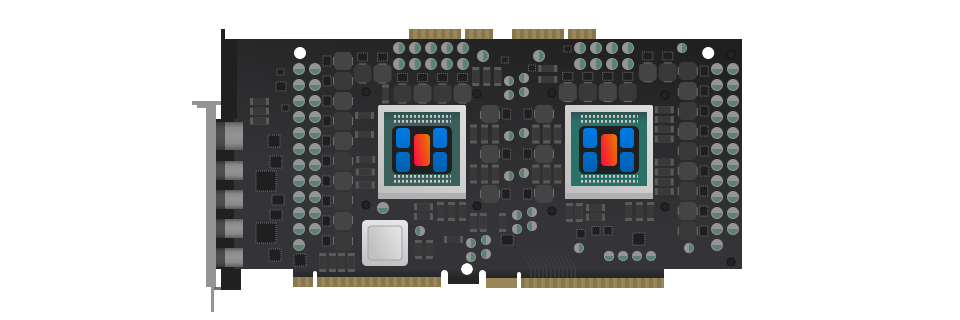
A Device is the entry point to the Metal API.
// 👋 Declare handles
MTLCommandBuffer* device;

// 🎮 Create device
layer.device = MTLCreateSystemDefaultDevice();
device = layer.device;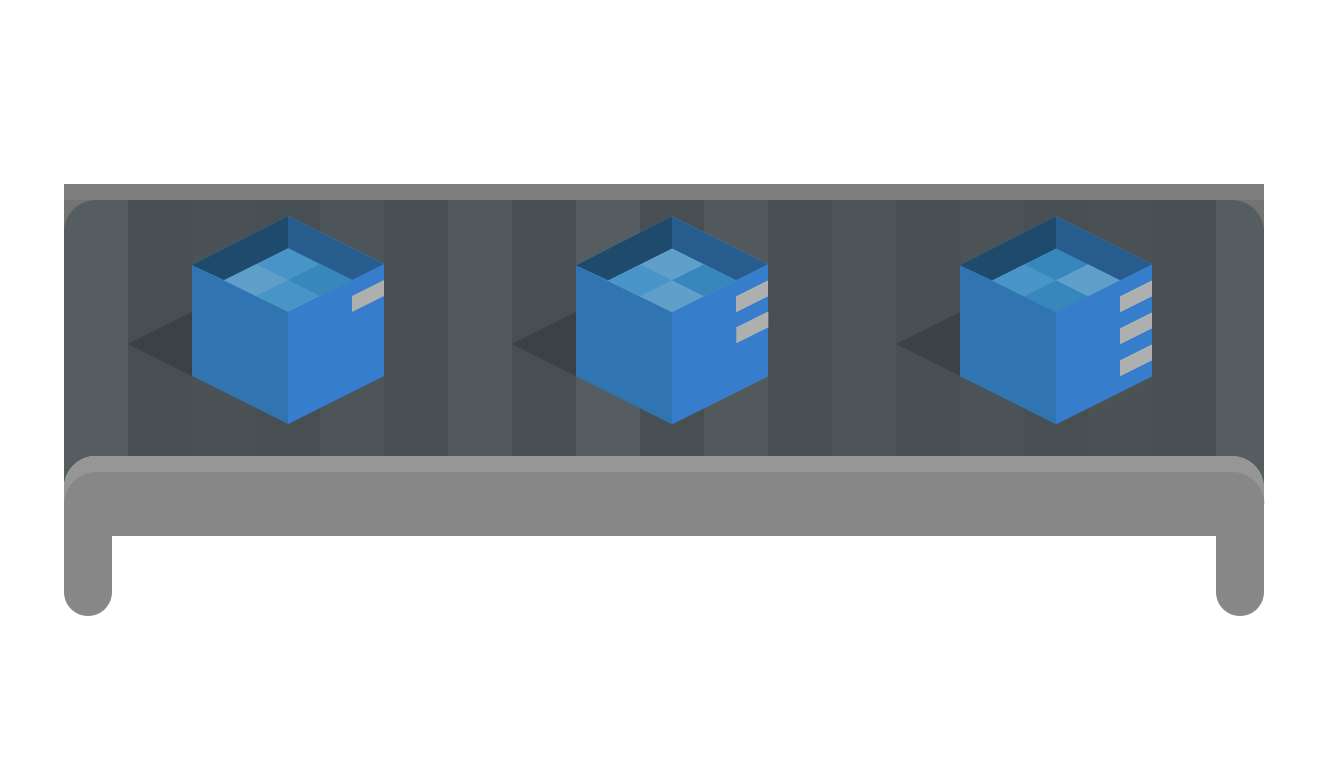
A Command Queue functions similarly to other modern graphics APIs, a queue from which you can send graphics function calls to the GPU.
// 👋 Declare handles
MTLCommandQueue* commandQueue;

// 📦 Create the command queue
commandQueue = [device newCommandQueue];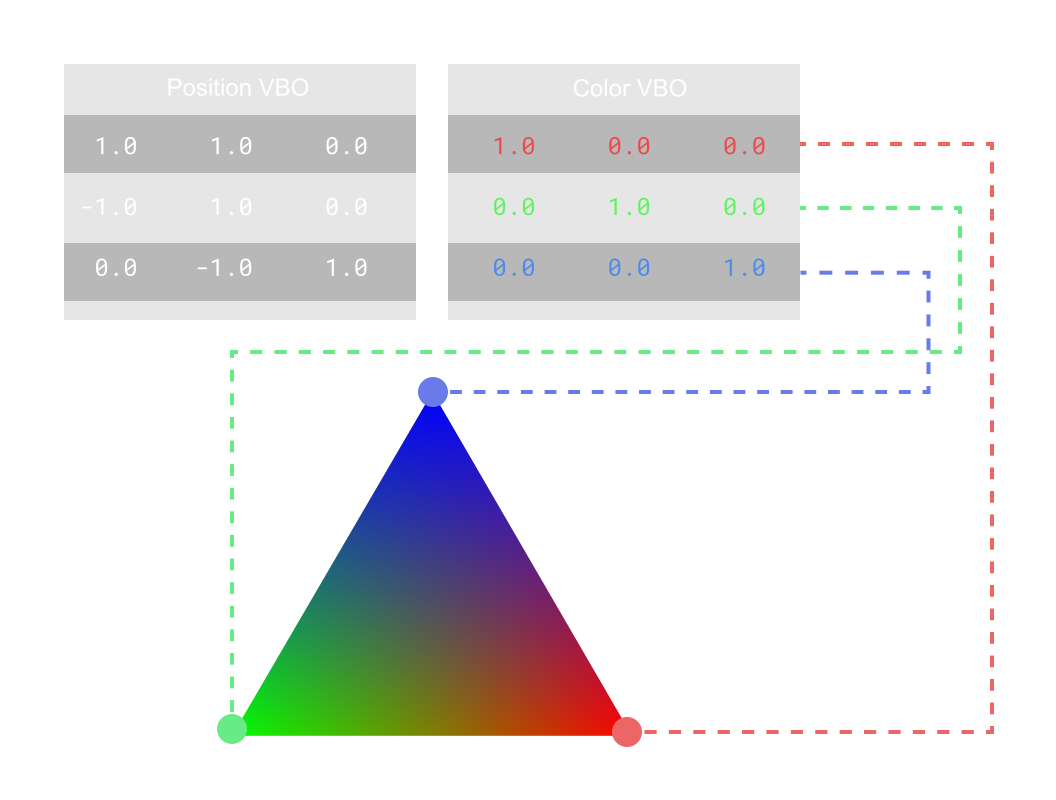
Vertex Buffers are blocks of data stored in the GPU that are used to create triangles.
You could describe this data with one big buffer containing everything or with independent arrays for each element in your vertex layout, whichever best fits your use case and performance requirements.
Having them split can be easier to update if you're changing your vertex buffer data often, which may be useful for CPU animations or procedurally generated geometry.
// 📈 Describe Position Vertex Buffer Data
float positions[3*3] = { 1.0f,  1.0f,  0.0f,
                        -1.0f,  1.0f,  0.0f,
                         0.0f, -1.0f,  0.0f };

// 🎨 Describe Color Vertex Buffer Data
float colors[3*3] = { 1.0f,  0.0f,  0.0f,
                      0.0f,  1.0f,  0.0f,
                      0.0f,  0.0f,  1.0f };

// 👋 Declare handles
MTLBuffer* positionBuffer;
MTLBuffer* colorBuffer;

// ⚪ Create VBO
positionBuffer = [device newBufferWithLength:sizeof(Vertex) * 3
                                    options:MTLResourceOptionCPUCacheModeDefault];
// 💬 Label VBO
[positionBuffer setLabel:@"PositionBuffer"];
// 💾 Push data to VBO
memcpy(positionBuffer.contents, positions, sizeof(float) * 3 * 3);

// ⚪ Create VBO
colorBuffer = [device newBufferWithLength:sizeof(Vertex) * 3
                                 options:MTLResourceOptionCPUCacheModeDefault];
// 💬 Label VBO
[colorBuffer setLabel:@"ColorBuffer"];
// 💾 Push data to VBO
memcpy(colorBuffer.contents, colors, sizeof(float) * 3 * 3);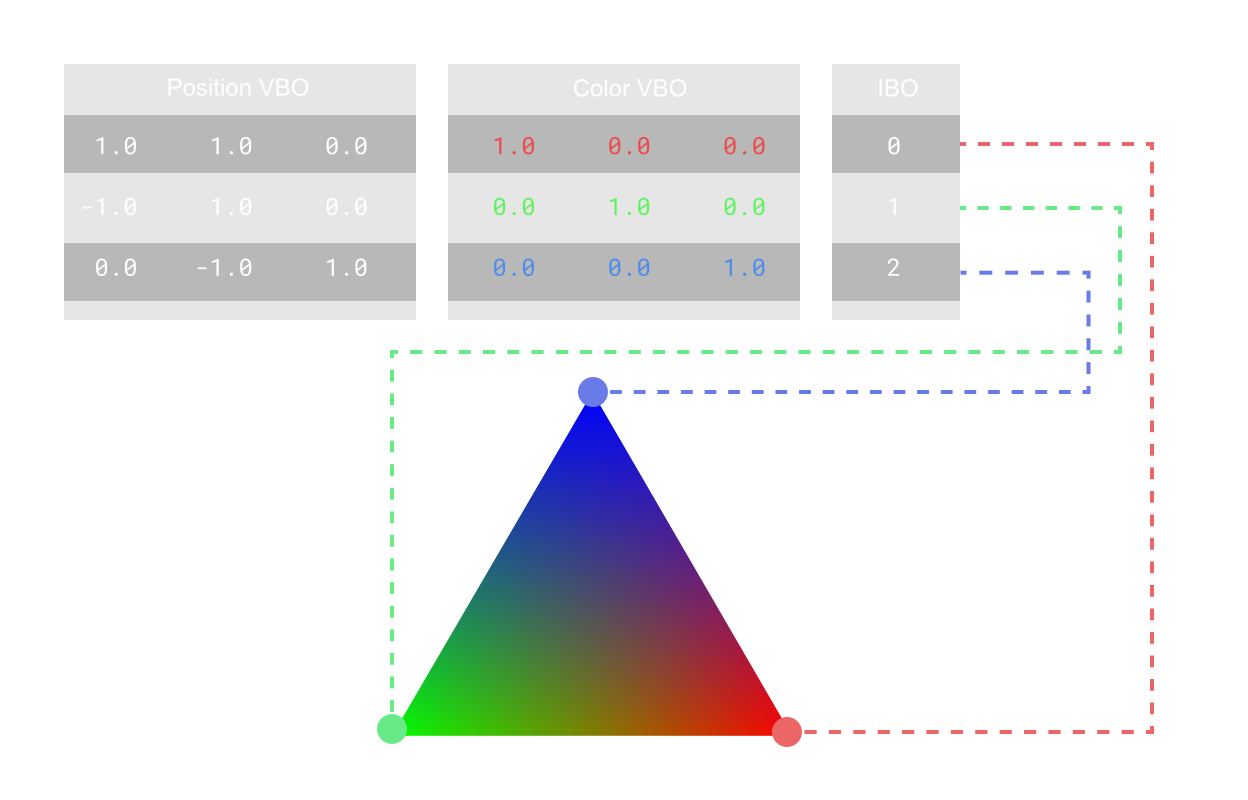
Index Buffers are blocks of data stored in the GPU used to describe triangles, each 3 numbers corresponds ot the index of that triangle.
If you're making triangles, there should be 3 points per triangle in the index buffer, for lines there should be 2, and points only need 1.
// 🗄️ Describe Index Buffer Data
unsigned indexBufferData[3] = { 0, 1, 2 };

// ✋ Declare Index Buffer Handle
MTLBuffer* indexBuffer;

// 🃏 Index Data
indexBuffer = [device newBufferWithLength:sizeof(unsigned) * 3
                                    options:MTLResourceOptionCPUCacheModeDefault];
[indexBuffer setLabel:@"IBO"];
memcpy(indexBuffer.contents, indexBufferData, sizeof(unsigned) * 3);
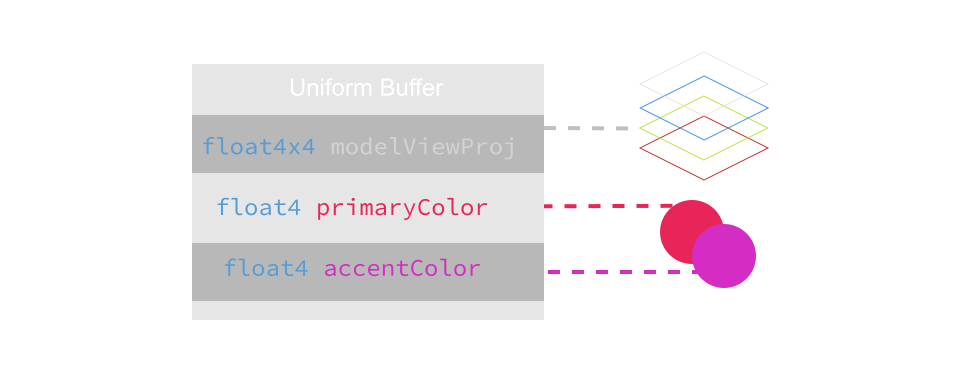
Uniform Buffers are blocks of memory describing data that's meant to be sent to your shader during rendering, such values to control effects, positional matrices, etc.
// 👋 Declare handles
MTLBuffer* uniformBuffer;

// 🗄️ Describe Uniform Data
struct UniformData
{
    mat4 projectionMatrix;
    mat4 modelMatrix;
    mat4 viewMatrix;
} uboVS;

// 🎛️ Create Uniform Buffer
uniformBuffer = [device newBufferWithLength:(sizeof(UniformData) + 255) & ~255
                                      options:MTLResourceOptionCPUCacheModeDefault];
[uniformBuffer setLabel:@"UBO"];

// Update Uniforms...
A Vertex Shader is a GPU program that executes on every vertex of what you're currently drawing. Often times developers will place code that handles positioning geometry here.
#include <metal_stdlib>
#include <simd/simd.h>

using namespace metal;

struct UBO
{
    float4x4 projectionMatrix;
    float4x4 modelMatrix;
    float4x4 viewMatrix;
};

struct VertexIn
{
    float3 inColor [[attribute(1)]];
    float3 inPos [[attribute(0)]];
};

struct VertexOut
{
    float3 outColor [[user(locn0)]];
    float4 position [[position]];
};

vertex VertexOut main(VertexIn in [[stage_in]], constant UBO& ubo [[buffer(1)]])
{
    VertexOut out = {};
    out.outColor = in.inColor;
    out.position = ((ubo.projectionMatrix * ubo.viewMatrix) * ubo.modelMatrix) * float4(in.inPos, 1.0);
    return out;
}

A Fragment Shader executes on every fragment. A fragment is like a pixel, but not limited to just 8 bit RGB, there could be multiple attachments that you're writing to, in multiple encoded formats.
#include <metal_stdlib>
#include <simd/simd.h>

using namespace metal;

struct FragmentIn
{
    float3 inColor [[user(locn0)]];
};

struct FragmentOut
{
    float4 outFragColor [[color(0)]];
};

fragment FragmentOut main(FragmentIn in [[stage_in]])
{
    FragmentOut out = {};
    out.outFragColor = float4(in.inColor, 1.0);
    return out;
}
Shader Libraries are unique to Metal, they function as intermediary objects that can perform reflection on those shaders. As the name suggests, you can create uber-shaders, large shaders with different main functions.
Shader Functions are handles to a particular shader function in a shader library.
// Load all the shader files with a .msl file extension in the project
NSError* err = nil;

// 📂 Load shader files, add null terminator to the end.
std::vector<char> vertSource = readFile("triangle.vert.msl");
vertSource.emplace_back(0);
std::vector<char> fragSource = readFile("triangle.frag.msl");
fragSource.emplace_back(0);

NSString* vertPath = [NSString stringWithCString:vertSource.data() encoding:[NSString defaultCStringEncoding]];
MTLLibrary* vertLibrary = [device newLibraryWithSource:vertPath options:nil error:&err];
[vertPath dealloc];

NSString* fragPath = [NSString stringWithCString:fragSource.data() encoding:[NSString defaultCStringEncoding]];
MTLLibrary* fragLibrary = [device newLibraryWithSource:fragPath options:nil error:&err];
[fragPath dealloc];

// Load the vertex function from the library
MTLFunction* vertexFunction = [vertLibrary newFunctionWithName:@"main0"];

// Load the fragment function from the library
MTLFunction* fragmentFunction = [fragLibrary newFunctionWithName:@"main0"];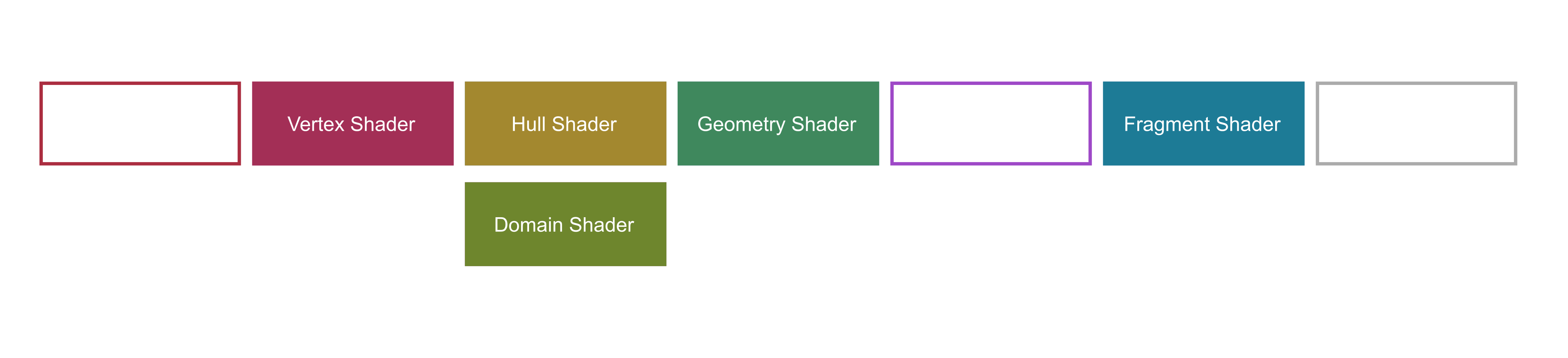
Pipeline State describes all the data that's to be fed into the execution of a raster based graphics pipeline.
// 👋 Declare handles
MTLRenderPipelineState* pipelineState;

// ⚗️ Graphics Pipeline
MTLRenderPipelineDescriptor* pipelineStateDescriptor = [[MTLRenderPipelineDescriptor alloc] init];
pipelineStateDescriptor.label = @"Simple Pipeline";
pipelineStateDescriptor.vertexFunction = vertexFunction;
pipelineStateDescriptor.fragmentFunction = fragmentFunction;
pipelineStateDescriptor.colorAttachments[0].pixelFormat = layer.pixelFormat;

// 🔣 Input Assembly
MTLVertexDescriptor* vertexDesc = [MTLVertexDescriptor vertexDescriptor];
vertexDesc.attributes[0].format = MTLVertexFormatFloat3;
vertexDesc.attributes[0].offset = 0;
vertexDesc.attributes[0].bufferIndex = 0;
vertexDesc.attributes[1].format = MTLVertexFormatFloat3;
vertexDesc.attributes[1].offset = sizeof(float) * 3;
vertexDesc.attributes[1].bufferIndex = 0;
vertexDesc.layouts[0].stepFunction = MTLVertexStepFunctionPerVertex;
vertexDesc.layouts[0].stride = sizeof(Vertex);

pipelineStateDescriptor.vertexDescriptor = vertexDesc;
NSError* error = nil;

// 🌟 Create Pipeline State Object
pipelineState = [device
    newRenderPipelineStateWithDescriptor:pipelineStateDescriptor
    error:&error];

if (!pipelineState)
{
  NSLog(@"Failed to created pipeline state, error %@", error);
}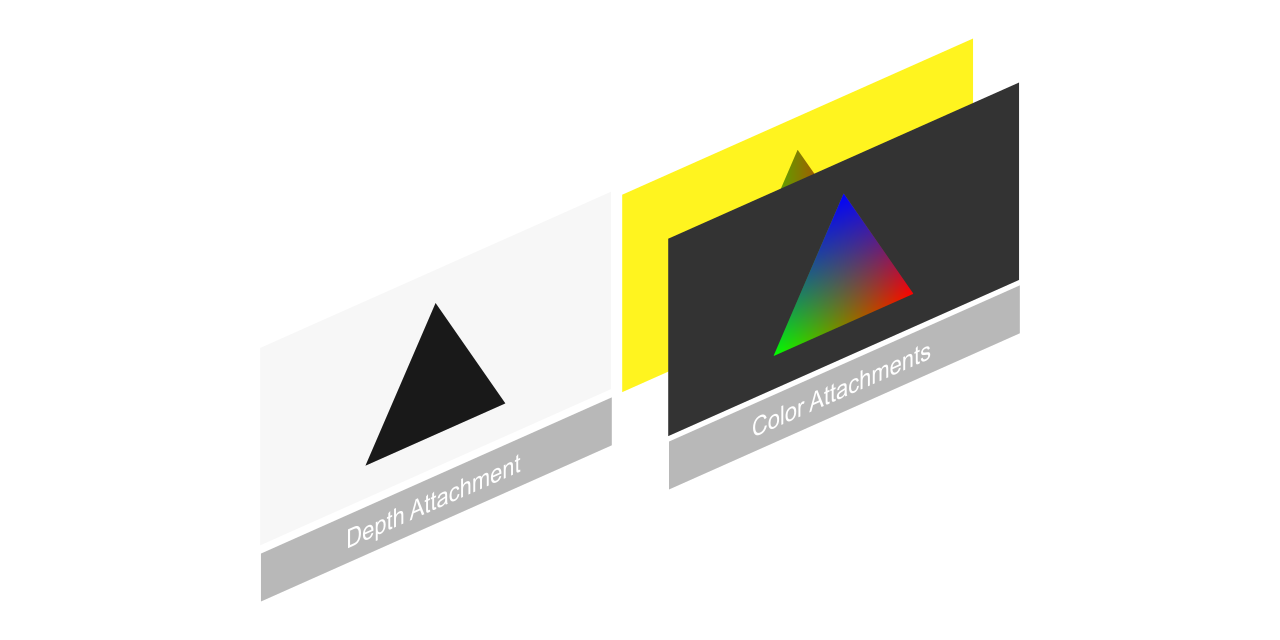
Render Passes are a description of frame buffer layouts (color attachments, depth/stencil attachments) and operations (clear color, load actions) for a given set of render calls.
// 👋 Declare Handles
CAMetalLayer* layer;

// 🤵 Build renderPassDescriptor generated from the view's drawable textures
CAMetalDrawable* drawable = layer.nextDrawable;

MTLRenderPassDescriptor* renderPassDescriptor = [MTLRenderPassDescriptor renderPassDescriptor];
renderPassDescriptor.colorAttachments[0].texture = drawable.texture;
renderPassDescriptor.colorAttachments[0].loadAction = MTLLoadActionClear;

MTLClearColor clearCol;
clearCol.red = 0.2;
clearCol.green = 0.2;
clearCol.blue = 0.2;
clearCol.alpha = 1.0;
renderPassDescriptor.colorAttachments[0].clearColor = clearCol;
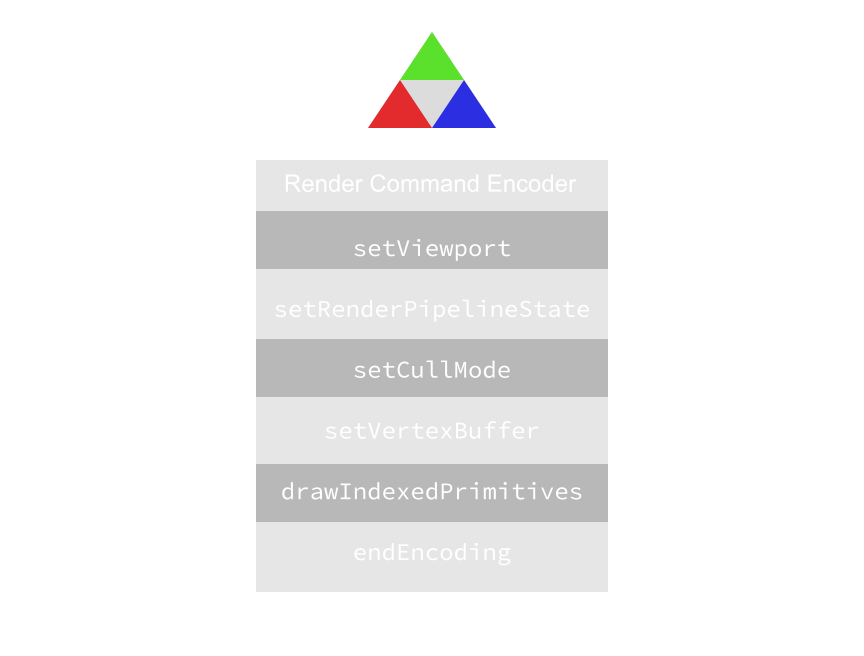
Command Buffers encode all the draw commands you intend to execute, and once you're done providing it with calls, can be submitted to the GPU. In that sense a command buffer is analogous to a callback that executes draw functions on the GPU once it's submitted to the queue.
// 👋 Declare Metal Handle
MTLCommandBuffer* commandBuffer;
unsigned viewportSize[2];

if (commandBuffer != nil)
  { [commandBuffer release]; }
  commandBuffer = [(commandQueue commandBuffer];
  (commandBuffer).label = @"MyCommand";


  if(renderPassDescriptor != nil)
  {
    // Create a render command encoder so we can render into something
    MTLRenderCommandEncoder* renderEncoder =
    [commandBuffer renderCommandEncoderWithDescriptor:renderPassDescriptor];
    renderEncoder.label = @"MyRenderEncoder";

    // Set the region of the drawable to which we'll draw.
    [renderEncoder setViewport:(MTLViewport){0.0, 0.0, static_cast<float>(viewportSize[0]), static_cast<float>(viewportSize[1]), 0.1, 1000.0 }];

    [renderEncoder setRenderPipelineState: pipelineState];

    [renderEncoder setCullMode:MTLCullModeNone];

    [renderEncoder setVertexBuffer:positionBuffer offset:0 atIndex:0];

    [renderEncoder setVertexBuffer:colorBuffer offset:0 atIndex:1];

    [renderEncoder setVertexBuffer:uniformBuffer offset:0 atIndex:2];

    [renderEncoder drawIndexedPrimitives:MTLPrimitiveTypeTriangle indexCount:3 indexType:MTLIndexTypeUInt32 indexBuffer:indexBuffer indexBufferOffset:0];

    [renderEncoder endEncoding];

    [commandBuffer presentDrawable:drawable];

    [commandBuffer commit];
}Like most system level programming languages with managed memory models, in Objective C++ you must destroy any objects that you create. This however isn't necessary if automatic reference counting (or ARC) is enabled at some point in your code's execution with @autoreleasepool.
void destroyAPI()
{
  if (commandBuffer != nil)
  {
    [commandBuffer release];
  }

  [commandQueue release];

  [device release];
}

void destroyResources()
{
  [fragmentFunction release];
  [vertexFunction release];

  [vertLibrary release];
  [fragLibrary release];

  [positionBuffer release];
  [colorBuffer release];
  [indexBuffer release];
  [uniformBuffer release];

  [pipelineState release];
}Metal is arguably the easiest modern computer graphics API to use, with smart defaults and an intuitive API that maps easily to modern GPUs.
Here's a few other resources to further your understanding of the Metal API:
Apple's developer app and site featured WWDC talks discussing Metal best practices.
Janie Clayton (@RedQueenCoder) wrote Metal Programming Guide: Tutorial and Reference via Swift, a really well written guide to the Metal API and related concepts.
Marius Horga wrote MetalKit.org, a collection of examples for Metal.
Warren Moore (@warrenm)'s Metal by Example book and examples.
Arseny Kapoulkine (@zeuxcg) wrote an article on what it was like writing a bringing Metal to Roblox.
You'll find all the source code described in this post in the Github repo here.